— microsoft teams

Install OAD assistant for Microsoft Teams

Your assistant to hire and develop talent with scientific certainty

Built by OAD.ai

Build stronger teams, with scientifc certainty —without leaving Teams.

Spotlights strong-fit candidates the moment they match an open role—right inside your hiring channel.

Pings you when it’s time to recheck team health, so small issues don’t become big ones.

Surfaces early flight-risk signals with clear, actionable next steps.

Delivers bite-size coaching tips tailored to each person’s strengths and gaps.

Turns assessment data into practical 1:1 feedback and growth plans.

Follow the steps below to connect OAD Assistant For Teams:

Before you get started

Please Note:

  • For OAD: You must be a Owner or Admin in your OAD account.
  • For Teams: You must also be a Global Admin for Microsoft Teams to install the admin-level version.
  • You can connect only one instance of Microsoft Teams to an OAD account.
  • A personal version of a Microsoft Teams account cannot be connected to OAD.

Before connecting OAD and Microsoft Teams, make sure you’ve given your users in Microsoft Teams permission to install and use the OAD app.
    1. Navigate to the Microsoft Teams admin center
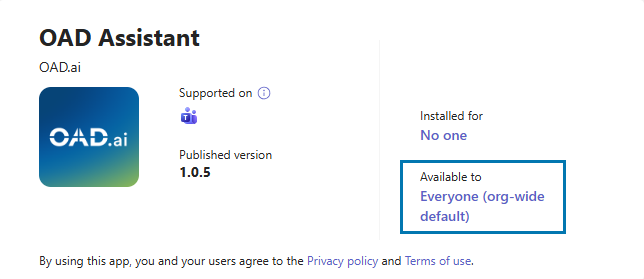
    2. On the left sidebar, click Team apps > Manage apps and search for OAD.
    3. Click the OAD app. Then click the Available to field.
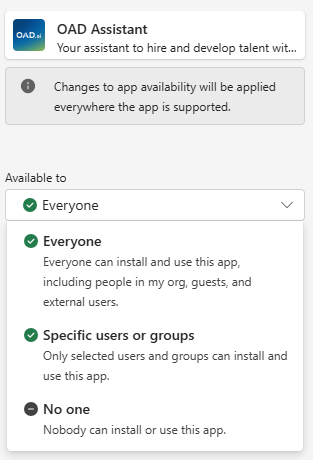
  1. In the Edit availability panel, click the Available to dropdown menu and select either Everyone or Specific users or groups, depending on whom you want to grant access to.
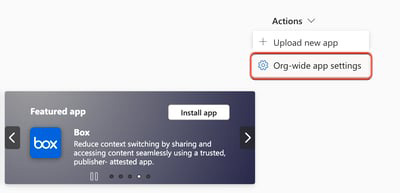
  1. Back on the Manage apps page, in the top right click Actions > Org-wide app settings.
  1. In the Org-wide app settings panel, check that the OAD app is allowed under your organization’s permissions policy. Then click Save.

App Requirements

You’ll be installing the integration for all users in your OAD account. When you connect your Microsoft Teams account to OAD, you’ll be prompted to authorize the following app permissions.
  • For admin-level installation:
      • Read all app catalogs: Required to locate and validate the Teams app before installation.
      • Read installed Teams apps for all users: Required to verify which users already have the app installed.
      • Manage Teams apps for all users: Required to install or remove the Teams app for users across the organization.
      • Read all users’ full profiles: Required to retrieve basic user information needed to map and manage app installations for users authorized by the admin.

Installation Process

  1. Login to your OAD account by clicking https://app.oad.ai/login
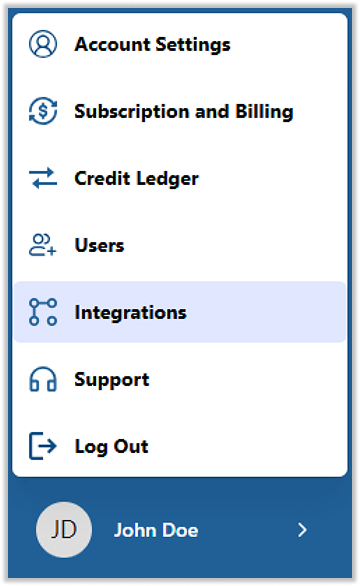
  2. Go to Integrations by clicking on User Name in bottom right corner.
  1. Click “Connect” under Teams. You’ll be redirected to Teams in a new browser tab.
  2. Review the requested permissions, then click Allow.

Map OAD User to your Microsoft Teams Users

After you approve the permissions, you are returned to your OAD account settings. Select the Teams channel where you want to receive notifications.

After Setup

Once the Teams app is installed and your OAD and Teams email addresses are aligned, notifications will begin automatically.

1. Hiring Manager notifications

  • When a candidate completes a survey and exceeds a 70% match with the job profile
  • When a job profile has remained open for more than 30 days

2. Team Manager notifications

  • When a team member completes a survey
  • When it’s time to send new surveys to team members

Disconnect the integration for Teams

To uninstall the Teams app:

  • Login to your OAD account by clicking https://app.oad.ai/login
  • Go to Integrations by clicking on User Name in bottom right corner.
  1. Click “Remove” button right beside connected, under Teams tab.

Get Support

Submit a support request using the web form at: oad.ai/contact-support

Privacy Policy

Please refer to OAD’s Privacy Policy for more information.